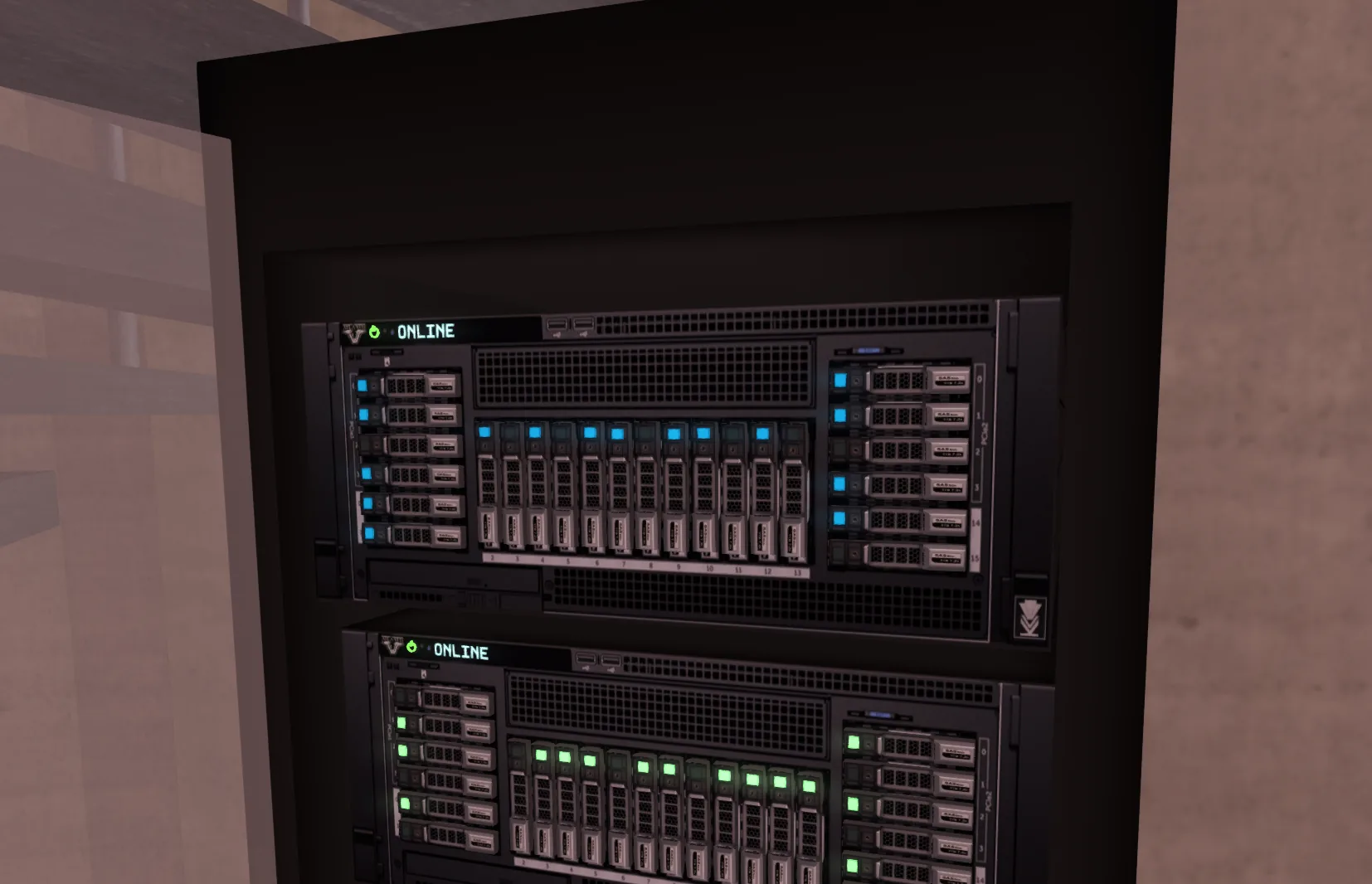
 +Access Control Server — screenshot
What you're getting.
The CDS: Access Control Server adds central security to your Custom Door Script doors. Instead of keeping an access list inside every door, you define your user groups once on the server and give each door the groups that may use it. Groups can be nested, which lets you grant access remotely and organise people by role across a whole base.
Every action is recorded. The server logs each open, close, access granted and access denied event, as well as power and lock state changes with their source, so you have a record of door use and can spot problems quickly.
The server also connects to the wider Vk Labs ecosystem. It reacts to Code 9 lockdowns and to the power system of ZPM HUBs and Naquadah Generators, and it can close every linked door on a power loss. All of this runs in a single script.
Everything in the box.
Nested user groups
Create as many user lists and groups as you need and assign them to doors by name. Nested groups let you give remote access to whole teams without editing each door.
Detailed activity logs
Every open, close, access granted and access denied event is logged, along with power and locking changes and the source that triggered them.
Code 9 and power compatible
Listens to Code 9 lockdowns, including OS Labs DHDs, and to power state changes from ZPM HUBs and Naquadah Generators. It can also force every linked door closed on a power loss.
Encrypted door communication
Communication between the server and the doors is encrypted with a shared password to prevent exploits.
Single script
The whole server runs from one script, which keeps the setup simple and the region's script load low.
Technical details.
More from the set.
Access Control Server — screenshot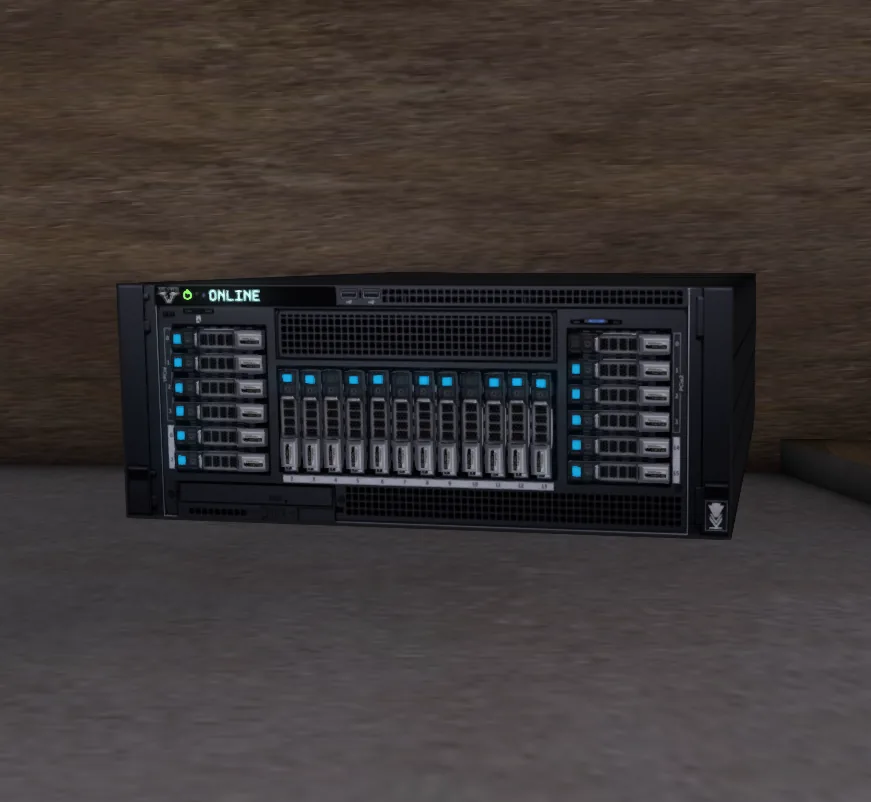 Access Control Server — screenshot
Setup & operation.
// Read the setup once, keep the options open as reference while you configure.
Server configuration
Once the server is rezzed, edit the Config notecard inside and add a ServerName, ServerChannel, and ServerPassword to your liking. You must use the exact same settings in the door Config notecard for the two to communicate. Don't use any symbols in the ServerName and Password.
Setting access lists
Once that's done, you can already start setting your access lists. They are written like so: UserList:<list name>|<username>,<username>,<username>,... You can have as many user lists and groups as you want, you just need to make sure you follow that nomenclature, i.e.: UserList:Tellers|Test Resident,Lucia Delete,Demoboy Oney
Avatar names
Avatar names must be complete and not the Display Names; the case isn't important.
Tune every setting.
The server reads its settings and access lists from the Config notecard inside it. ServerName and ServerChannel must be exactly the same as in the door Config notecards.
// Click any line to see what it does and try other values. Copy the result straight into the Config notecard.
UserList:<list name>|<username>,<username>,.... Avatar names must be complete and not the Display Names; the case isn't important.Every release, in order.
- Added logs to power and locking state changes with source name and channel.
- Fixed possible occasions where the locking and power API calls towards the doors would trigger even if nothing had changed.
- Removed debug message.
- Improved door-server encryption (CDS 5.5).
- Added "Clear Logs" menu option.
- Fixed owner unable to access the server's menu if not in the Admins list.